1 Install the prerequisites
You need Git, Node 26 or later, pnpm 12 or later, and Docker.
How to install each prerequisite on each system
|
Windows |
macOS |
Linux |
| Git |
winget install Git.Git |
xcode-select --install |
Your package manager, e.g.
sudo apt install git
|
| Docker |
Docker Desktop, on WSL 2 (wsl --install)
|
Docker Desktop
|
Docker Engine, then add yourself to the docker group
|
|
Node, via
fnm
|
winget install Schniz.fnm |
brew install fnm |
curl -fsSL https://fnm.vercel.app/install |
                            bash
|
| pnpm |
iwr https://get.pnpm.io/install.ps1 -useb |
                            iex
|
curl -fsSL https://get.pnpm.io/install.sh | sh
                            -
|
Then install Node 26 with fnm, and check both versions:
fnm install 26
fnm default 26
node --version
pnpm --version
On Windows, if an older pnpm still shows, run
where.exe pnpm: the installer's copy in
%LOCALAPPDATA%\pnpm must come first on your PATH.
More in
Running AI Office.
2 Clone and install
git clone https://github.com/adrianeyre/ai-office.git
cd ai-office
pnpm install
Start Docker (on Windows and macOS, open Docker Desktop and
wait until the engine is running). docker info
should answer without an error.
3 Create .env
Copy the example file to .env in the repository
root:
Copy-Item .env.example .env
cp .env.example .env
That is all development needs: the example already points at
the development Postgres and has sample secrets. Those secrets
are public, so for anything else generate your own and change
POSTGRES_PASSWORD (and the password in
DATABASE_URL) too:
node -e "console.log(require('crypto').randomBytes(32).toString('hex'))"
node -e "console.log(require('crypto').randomBytes(32).toString('base64'))"
Never commit .env. ENCRYPTION_KEY
encrypts your AI Account credentials: change it and saved ones
can no longer be read. Every setting is explained in
.env.example.
4 Run AI Office
In development
pnpm dev
This starts the development Postgres (pnpm db:up,
on port 3048), applies pending migrations, then runs the
server (port 3046) and the web app (port 3045, which proxies
/api and the AI Gateway's /v1 to the
server) together. Open
http://localhost:3045.
pnpm db:down stops the database; its data stays
in a Docker volume.
Or with docker compose
AGENT_UID=1000 AGENT_GID=1000 pnpm
                            sandbox:build
docker compose up --build --wait
curl localhost:3045/health
This runs the whole AI Office in Docker: the app and Postgres
18, published on 127.0.0.1:3045, and the
sandboxes Agents and the Manager chat work in, which the app
starts on your Docker. That one address serves the web app and
the AI Gateway's /v1. Data survives
docker compose down. On Linux, set
DOCKER_GID to the Docker socket's group (stat -c %g /var/run/docker.sock). Sandboxes' clones live in
AI_OFFICE_SANDBOX_DIR (~/.ai-office/sandboxes
by default), mounted into the app at the same path; never put
it under a directory others may write to, such as
/tmp. On macOS it must be a path Docker Desktop
shares, and on Windows a Linux-style path, never
C:\….
Opening AI Office beyond your machine
(AI_OFFICE_BIND_ADDRESS) opens the AI Gateway
too. Every Gateway call needs a Gateway Key, but use
docker compose --profile tls up, which adds Caddy
for HTTPS, rather than plain HTTP; see
Deploying to EC2
for a whole server deployment.
5 Sign in for the first time
-
Create the Owner password. There is no
default: the first visit goes to
/setup. It
must be at least 12 characters, use at least 6 different
characters, and mix three of lower case, upper case, digits
and symbols (unless it is 20 characters or more). From then
on, sign in at /login. Under docker compose the
setup screen also asks for the one-time setup token AI
Office wrote as it started:
docker compose logs app shows the file it is
in, and
docker compose exec app cat <file>
shows it. Nobody else can become the Owner first.
-
Turn on TOTP (optional, recommended
whenever AI Office is not on
localhost): in
Admin, scan the QR code into an authenticator app, confirm
with a code, and save the ten recovery codes.
-
Set your GitHub login on Admin's
Intake card: AI Office only takes issues
you opened or labelled. The
Git identity card sets who commits are
authored as.
6 Create the GitHub App
AI Office acts on GitHub as a GitHub App: it pushes branches,
opens pull requests, posts reviews and comments, and merges.
-
Open
Settings → Developer settings → GitHub Apps → New GitHub
App
(for an organisation's repositories, in the organisation's
settings).
-
Give it a unique name, such as
AI Office (your-login). Any homepage URL will
do. Leave the callback URL empty and OAuth during
installation off.
-
Webhook: untick Active. AI
Office checks for issues on a timer; webhooks are optional
(below).
-
Repository permissions: exactly these, and
every other permission at No access.
The GitHub App's repository permissions
| Permission |
Access |
What AI Office does with it |
| Checks |
Read-only |
Reads a pull request's check runs, for the Merge
Policy
|
| Contents |
Read and write |
Pushes each issue's branch, reads files, merges |
| Issues |
Read and write |
Reads your issues, creates and moves labels, comments
|
| Metadata |
Read-only |
Reads the repository and its rulesets (set for every
App)
|
| Pull requests |
Read and write |
Opens a pull request per issue and posts AI reviews
|
-
Where can this GitHub App be installed?
Only on this account. Then
Create GitHub App.
-
Copy the App ID, and under
Private keys choose
Generate a private key.
-
In AI Office, open Floor Settings, and in
the GitHub card give the App ID and paste
the whole
.pem file under
Add a GitHub App. It is kept encrypted, and
used at once, with no restart. Add more Apps, or an access
token and a read-only one, the same way.
The private key is a credential: delete the downloaded file
once the App is added. Administration and Workflows are left
out on purpose, so Agents can never change a repository's
settings or its CI.
Webhooks (optional)
If GitHub can reach your AI Office over HTTPS, webhooks make
it act at once instead of at the next check. Choose a secret
of at least 20 characters (openssl rand -hex 32),
enter it on Admin's GitHub webhooks card,
then on the App tick Active, set the URL to
your address followed by /api/github/webhooks
with the same secret, and subscribe to
Issues, Label,
Pull request, Check run and
Check suite.
Full details:
Setting up the GitHub App and your Floors.
7 Install the App
On the App's page choose Install App, pick
the account, then
Only select repositories and the repository
that will be a Floor. Start with a small test repository with
a passing CI check; the guide has one ready to copy,
ai-office-sandbox.
8 Build the sandbox images
Agents work in Docker sandboxes running Claude Code, Codex or
opencode. Build the images as the user that runs AI Office
(pnpm dev builds any that are missing), or, for
docker compose, for its node user with
AGENT_UID=1000 AGENT_GID=1000 in front:
pnpm sandbox:build
pnpm sandbox:build claude
Sandboxes join a Docker network with no route out, where they
reach only the sandbox relay: the AI Gateway's own port
through it, and over HTTPS the hosts
SANDBOX_EGRESS_HOSTS names, and nothing else. AI
Office reaches the Gateway from them at the same address
everywhere,
SANDBOX_GATEWAY_URL=http://sandbox-relay:3047,
which .env.example already sets. Then:
What else to set for each way of running AI Office
| Where AI Office runs |
Also |
pnpm dev, Windows and macOS (Docker
Desktop)
|
Nothing: pnpm dev starts the relay with
the development Postgres
|
pnpm dev, Linux |
The docker0 bridge's address (ip -4 addr show docker0, usually 172.17.0.1), where the relay
reaches the Gateway:
GATEWAY_HOST=172.17.0.1
|
| docker compose |
Nothing to set: compose starts the relay and sets
SANDBOX_GATEWAY_URL,
SANDBOX_NETWORK and
SANDBOX_WORK_DIR itself, whatever
.env says. Build the images with
AGENT_UID=1000 AGENT_GID=1000 pnpm
sandbox:build
|
Never set SANDBOX_NETWORK to bridge,
Docker's default bridge, which has a route out, nor
GATEWAY_HOST to 0.0.0.0. Sandboxes
never receive an AI Account credential: each gets a Gateway
Key of its own. See
Sandboxes.
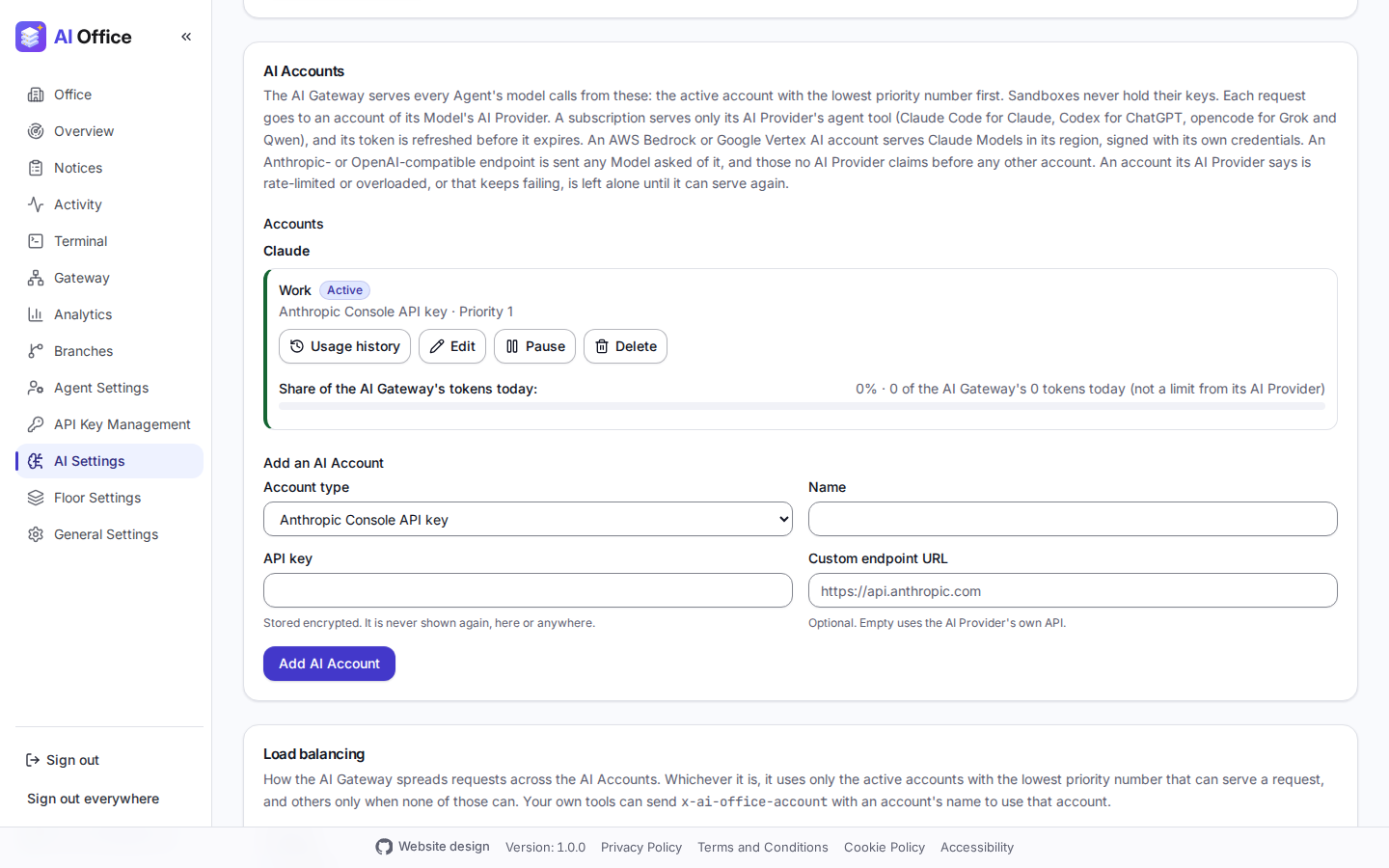
9 Add your AI Accounts
In AI Settings → AI Accounts. None come from
the environment, and until one is added every Gateway request
fails. Credentials are encrypted with
ENCRYPTION_KEY and never shown again.
-
Claude subscription (Pro or Max). Read and
accept the terms warning, choose
Sign in to Claude, sign in, and paste back
the code the page shows. AI Office refreshes the token
itself and shows your 5-hour and weekly usage.
-
ChatGPT subscription (Plus, Pro or Business).
Accept the terms warning and choose
Sign in to OpenAI. The sign-in ends on
http://localhost:1455, which AI Office listens
on while it waits, so on the same machine it finishes by
itself; when AI Office runs elsewhere, paste the page's
whole address back.
-
API keys: Anthropic Console, xAI, Gemini,
OpenRouter, DeepSeek, Z.ai, MiniMax, Kimi, Ollama Cloud, AWS
Bedrock, Google Vertex AI, or any Anthropic- or
OpenAI-compatible endpoint.
Each AI Provider has a default Model you choose, and each
Agent can override it. See
AI Accounts
in the AI Gateway guide.
10 Add a Floor
Admin's Floors card lists the repositories
the App is installed on. Pick a
Floor Template (Development, the default,
gives a Manager, a coder, a reviewer and QA), then
Add Floor. AI Office creates the pipeline's
labels on the repository within a minute.
Choose the Floor's Merge Policy on its admin page, then
protect the repository's default branch on GitHub: require CI
and forbid direct pushes. AI Office never changes protection
itself. See
Protect the default branch.
11 Hand over the first issue
Open a small issue with a list of acceptance criteria and
label it ai-office. Within a minute the Manager
comments its triage and labels it needs-work, and
an Agent picks it up: watch it at its desk, or click its
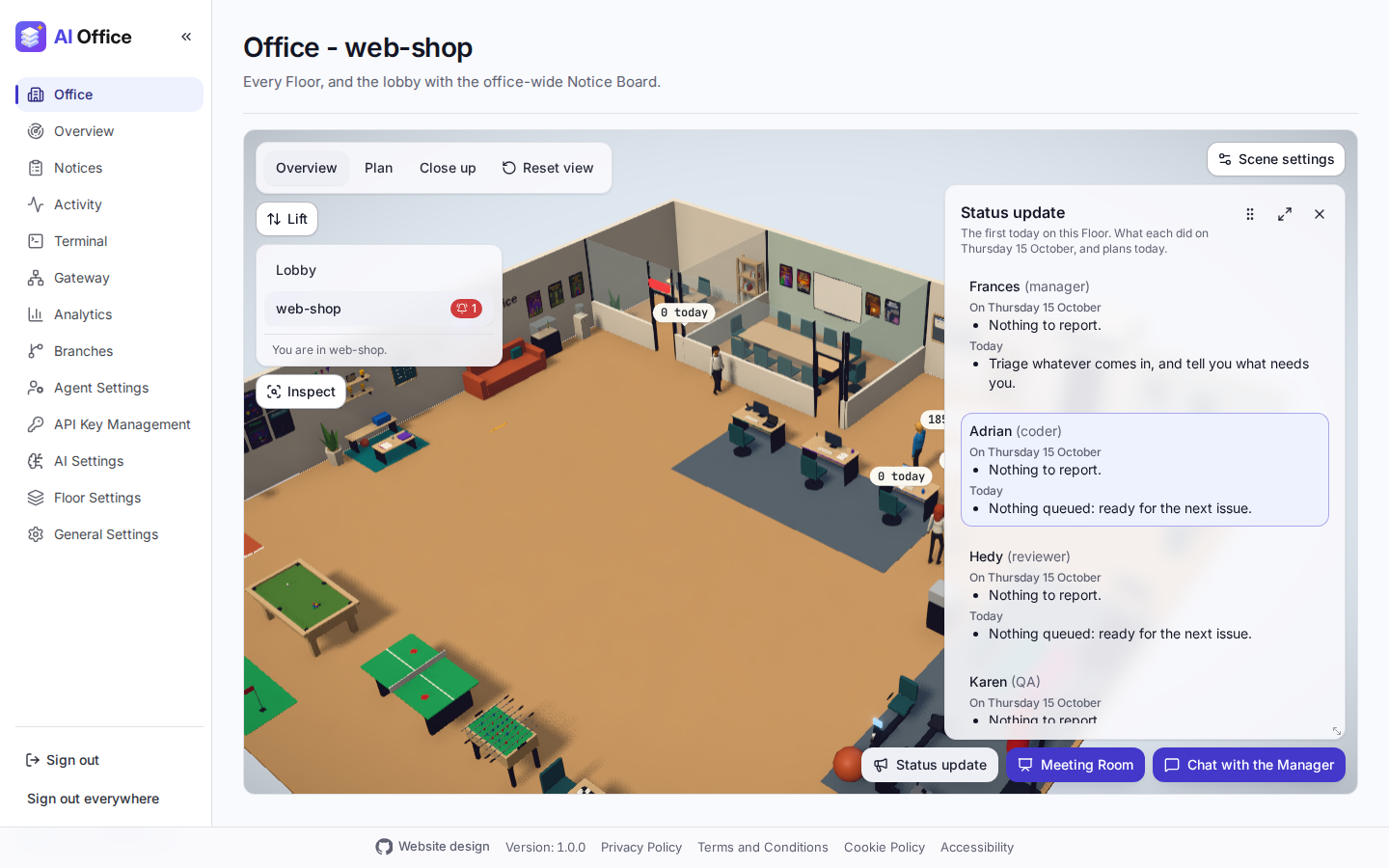
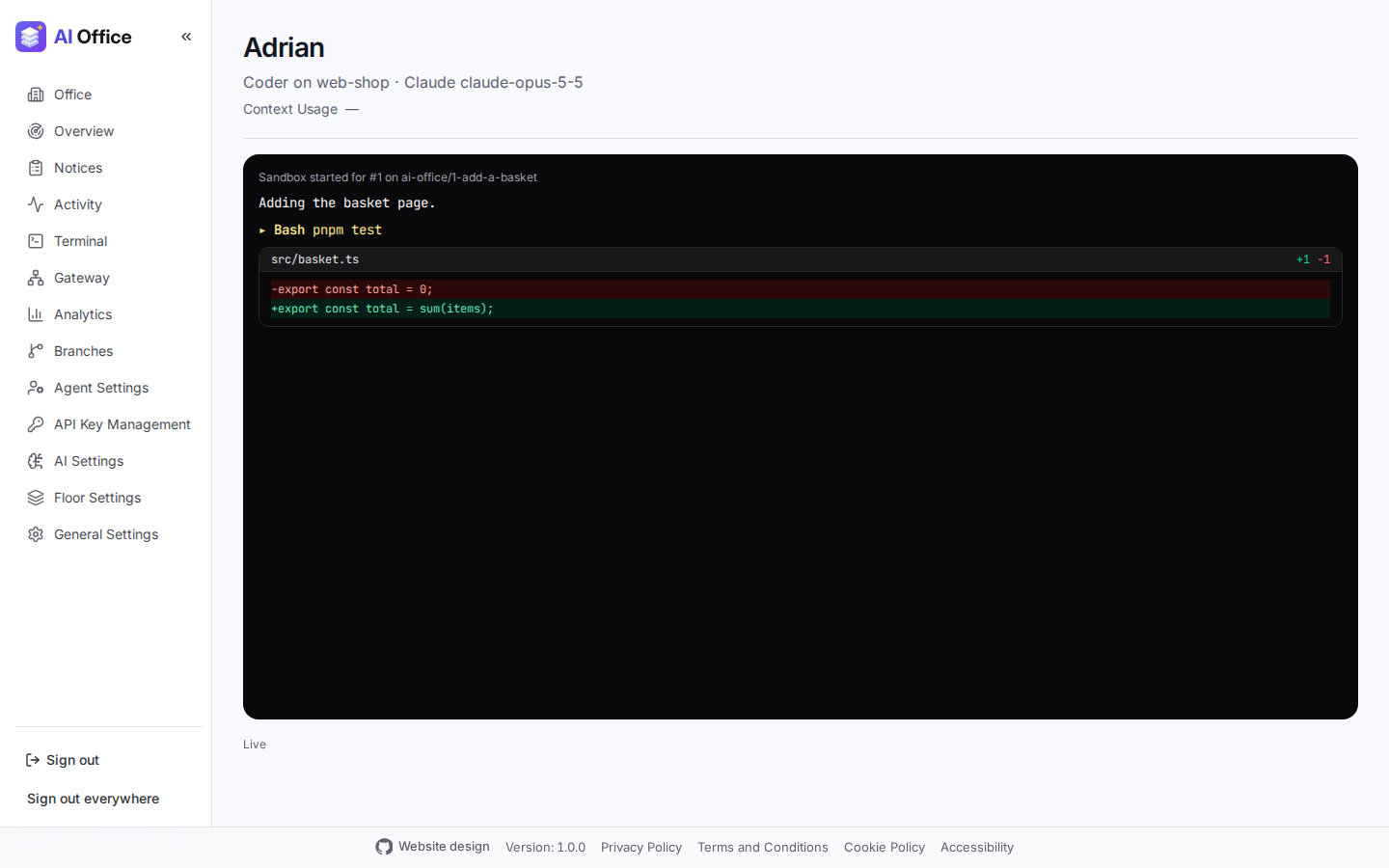
monitor for the live view. Or open the Floor's Manager chat
and type complete issues 1 to 5 for a Batch with
a Plan on the whiteboard.